
Home · Help · Windows Server and ISO images
Windows Server and ISO images on the vServer KVM
A vServer KVM is a complete virtual machine with its own kernel, UEFI and a virtual TPM. Besides the ready-made Linux systems any operating system can be installed from an ISO image, including Windows Server. Drives, console and reinstall are on the server page in the customer portal.
The drives
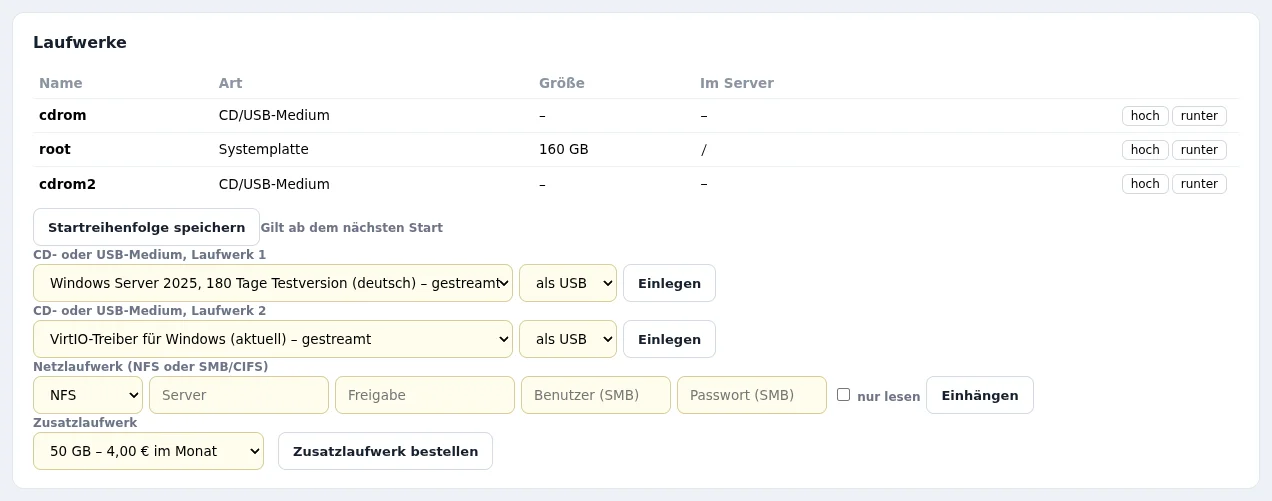
Every vServer KVM has two virtual drives. The „Laufwerke“ (drives) card shows name, type, size and whether a medium is inserted. Each drive offers three sources:
- Library: ISO images we provide. Entries marked „gestreamt“ (streamed) come directly from the vendor.
- Own address: any HTTPS address hosting an ISO image.
- ISO from your PC: an image from your own computer, inserted via the console.
Every medium can be inserted „als CD“ (as CD) or „als USB“ (as USB). A change takes effect at the next start of the server. The server boots from drive 1, drive 2 is meant for drivers, for example. „Auswerfen“ (eject) empties a drive again.
ISO images from the vendor
| Image | Note |
|---|---|
| Windows Server 2025 | 180-day evaluation, German and English |
| VirtIO drivers for Windows | current version |
| AlmaLinux 9 and 10 | current version, minimal |
| Rocky Linux 9 and 10 | current version, minimal |
The images are not stored as copies on our side but are read directly from the vendor's address when inserted. So the drive always holds the current version.
Installing Windows Server
For Windows there is a dedicated choice under „Neuinstallation & SSH“ (reinstall and SSH): „Windows Server 2025 … – Installation vom Hersteller-ISO“ (installation from the vendor ISO). After „Server neu installieren“ (reinstall server) the following happens:
- The server is set up from scratch. Installation image and VirtIO drivers are inserted as USB, and our installation script takes care of the setup.
- At boot Windows asks „Press any key to boot from CD“ in the console. One key press in the console starts the installation, as on any PC.
- Setup then runs without further input. Drivers for disk and network card are included, and edition, computer name, language, keyboard, Remote Desktop, port and ping are set up as chosen beforehand in the customer portal.
- At the end the administrator password is set in the Windows setup. We do not assign one.
- At the end of the installation all media are ejected automatically.
The Windows license is not included in the price. The evaluation runs for 180 days and can be converted into a full version with your own license key.
Why drivers and USB
Virtual machines run fastest with VirtIO devices for disk and network. Windows setup has no drivers for them and finds no disk without them. That is why the VirtIO ISO is inserted automatically as well. Windows media and drivers are also always inserted as USB, because otherwise Windows setup cannot read the virtual CD drive.
Installing other systems from ISO
For Linux or your own system the image goes into drive 1 and the server is restarted. The installation then runs in the graphical console in the browser, with mouse and keyboard. After installation the drive is ejected so the server boots from the disk again.
Rescue system
If the server no longer boots, it can start SystemRescue instead of its own system. The disk is accessible from there for repairs or to back up data. When finished the drive is removed and the server boots from the disk again.
Frequently asked questions
- Does Windows also run on a container vServer?
- No. Windows needs a complete virtual machine, that is a vServer KVM.
- Can I use my own Windows ISO?
- Yes, via your own HTTPS address or as an ISO from your PC via the console. The VirtIO drivers are available in the library for drive 2.
- How long does the installation take?
- In our tests Windows Server 2025 was reachable via Remote Desktop after about 40 minutes.
See also: Installing Windows Server 2025: step by step View vServer KVM Reinstalling a server without losing data First steps on your vServer