
Home · Help · Game servers in the customer portal
Managing a game server in the customer portal
You operate your game server entirely in the customer portal under „Spieleserver“ (Game servers). The overview shows each server as a tile with status, address and player count. „Verwalten“ (Manage) opens the server page. Everything there is arranged in cards, which this article explains one by one. The screenshots come from a Project Zomboid server on Flex L. Other games and tiers lack some fields or cards.
Status, starting and switching off
At the top you see name, game, tier and player count, plus the status, for example „läuft“ (running). „Ausschalten“ (Switch off) stops the server, „Neu starten“ (Restart) restarts it. A server that is switched off shows the start button instead. While a job is running, the buttons are locked. The page updates by itself.

The first start
A new server shows „Noch nicht konfiguriert“ (Not yet configured). First set in the „Einstellungen“ (Settings) card what must be fixed before the first start, for example the world name. If required information is missing, the page names it with a link to the field. With „Server einrichten und starten“ (Set up and start server) the world is created with these settings. The first start takes a few minutes. The server does not start without your click.

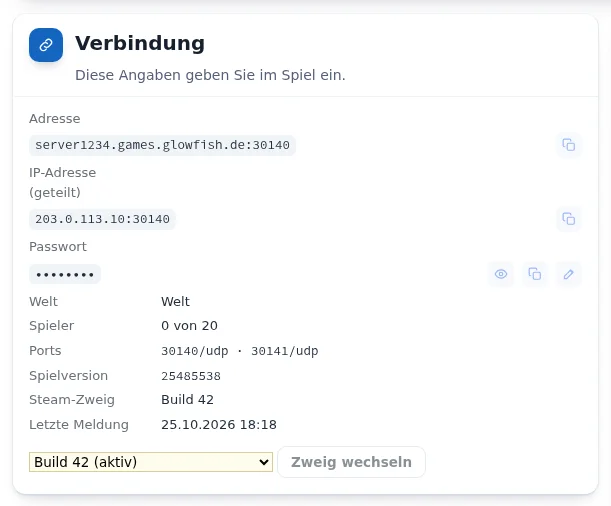
„Verbindung“ (Connection) card
This card has everything your fellow players need to join: address with port and IP address, each with a copy button. The password is hidden. The eye shows it, the pencil changes it directly. Below follow world, player count, ports, game version and the time of the server's last report.
For Project Zomboid and Garry's Mod you also choose the Steam branch here, for example Build 42 or Build 41, and confirm with „Zweig wechseln“ (Switch branch). For Valheim with crossplay this card shows the join code, for Core Keeper the Game ID.
„Einstellungen“ (Settings) card
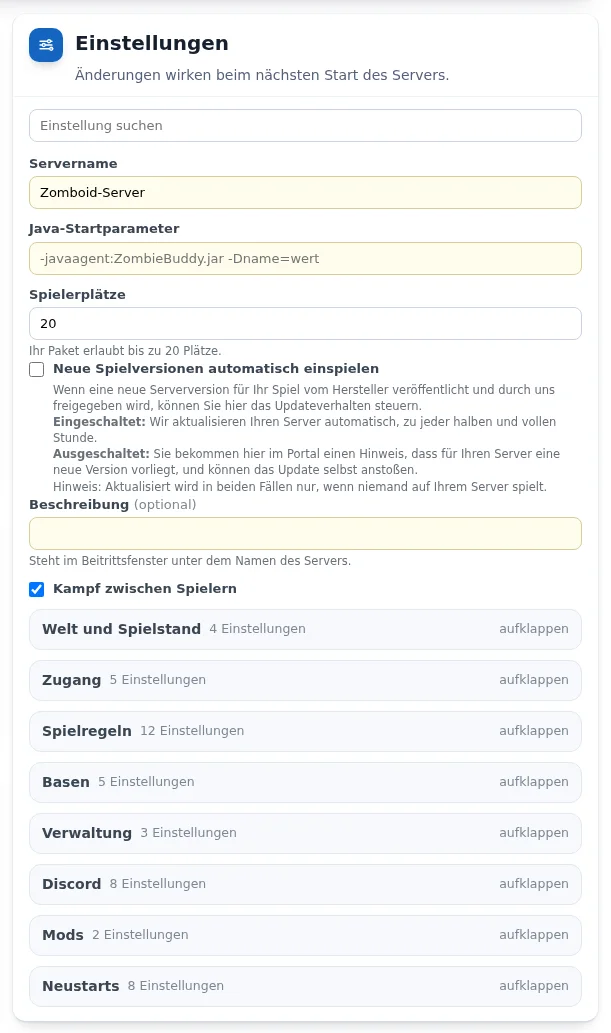
The game's settings are in one card: the most important fields at the top, below them groups to expand, for example „Welt und Spielstand“ (World and save), „Zugang“ (Access), „Mods“ and „Neustarts“ (Restarts). With „Einstellung suchen“ (Search setting) you find a field quickly, matching groups expand automatically.
- „Servername“ (Server name) is the name in the game's server list. If the field is empty, the name of the active world appears. Changing it does not rename any world.
- There is no save button. Switches and selection lists are saved immediately, text fields shortly after typing or when you leave the field. Every field reports „Gespeichert“ (Saved) or names the error.
- Most changes take effect at the next start. If the server is running, „Geänderte Einstellungen wirken nach einem Neustart.“ (Changed settings take effect after a restart) appears with the „Jetzt neu starten“ (Restart now) button. The server does not restart on its own for this.
- „Neue Spielversionen automatisch einspielen“ (Install new game versions automatically): if the switch is on, the server installs a new game version approved by us by itself, on the hour and half hour. If it is off, the customer portal shows a notice and you start the update yourself. In both cases the update only runs when nobody is playing on the server.
- From Flex M, the settings files of some games can also be edited directly, for example
server.propertiesfor Minecraft. The values then also appear here. An invalid value is shown as a notice at the field.
„Mods“ group
From Flex M, you switch on the mod environment in the „Mods“ group with „Mods einschalten“ (Switch on mods). Without this step the server loads no mods. How mods are added per game is described in the articles on the individual games, for Project Zomboid under Setting up Project Zomboid mods.
„Neustarts“ (Restarts) group
Scheduled restarts, restart after an unexpected stop and, for Project Zomboid, in-game warnings are set in the „Neustarts“ (Restarts) group. Everything about it under Setting up game server restarts.
„Welten“ (Worlds) card
Before the first start you set the „Name der Welt“ (World name) in the settings: letters, digits, hyphen and underscore, up to 40 characters. After that you manage your worlds in the „Welten“ (Worlds) card, for Project Zomboid, Valheim, Factorio, Minecraft, Terraria, Don't Starve Together and Hytale.
- Create a new world: enter a name, select „Anlegen“ (Create) and confirm. The new world becomes active. For Project Zomboid it can take over the settings of the current world („Einstellungen der aktuellen Welt übernehmen“), otherwise it starts with the game's defaults. For the other games the settings apply to the whole server.
- Switch: in the selection the active world is marked „(aktiv)“ (active), with size and last change below. „Wechseln“ (Switch) makes the selected world active.
- Rename: with the pencil next to the selection. The world's save and settings get the new name, no new world is created.
- Delete: only a world that is not active.
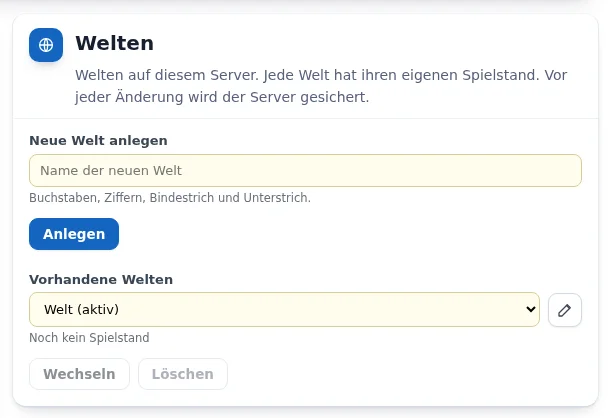
Before each of these changes the server makes a backup, which appears in the „Sicherungen“ (Backups) card. If the server is running, it restarts for creating, switching and renaming the active world, otherwise the change applies from the next start. If the name already exists, for example for a world you uploaded yourself, nothing is overwritten: the action is rejected, and you make the existing world active with „Wechseln“ (Switch). Core Keeper always saves to a fixed slot and Garry's Mod only knows maps, so neither has a „Welten“ card.
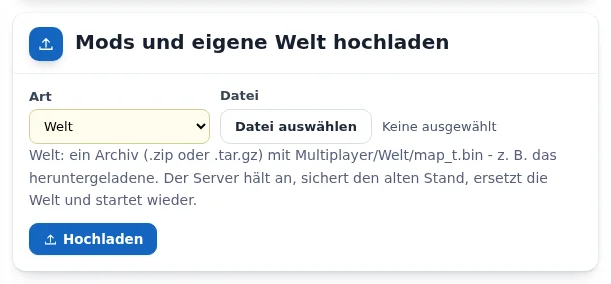
„Mods und eigene Welt hochladen“ (Upload mods and your own world) card
Under „Art“ (Type) you choose what to upload: your own world or, from Flex M, a mod. Below the selection it says which files the game expects. With „Datei auswählen“ (Choose file) and „Hochladen“ (Upload) you transfer the file. For a world, the server stops, backs up the previous state, replaces the world and starts again. Games that load mods from the Steam Workshop need no mod upload here.
„Sicherungen“ (Backups) card
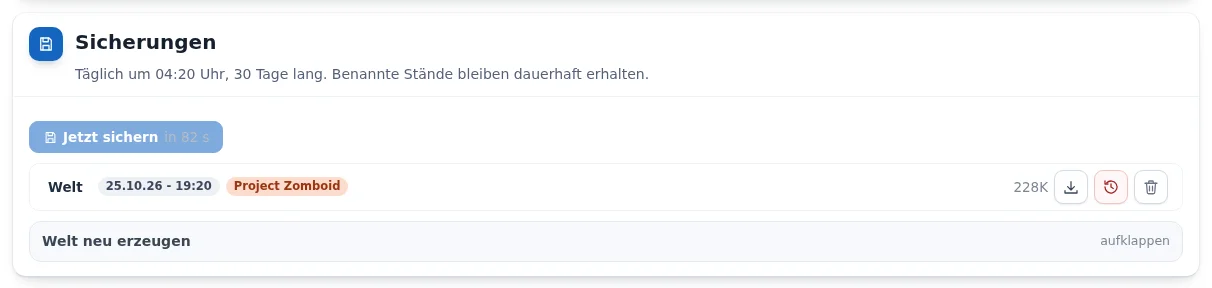
The world is backed up daily. Time and retention are shown below the heading, 30 days for Spieleserver Flex. With „Jetzt sichern“ (Back up now) you create an additional backup. Each row has buttons to download, restore and delete. Click the name of a backup to change it. Named backups are kept permanently.
Under „Welt neu erzeugen“ (Create new world) you start a new world. The server stops, backs up the previous state and creates the world anew with the stored settings. The old state is kept as a backup and can be restored. To confirm, you type a given sentence.
More under Downloading and restoring backups.
„Spiel wechseln“ (Switch game) card
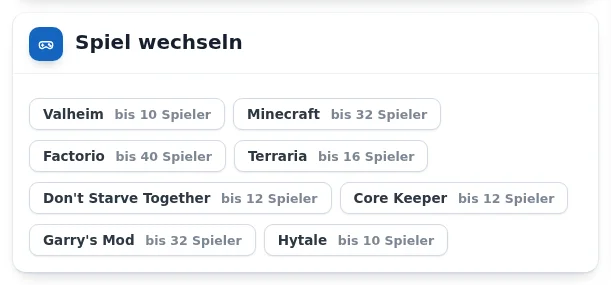
With Spieleserver Flex you switch the game free of charge, at most once per hour. Each button names the game and how many players it allows on your tier. The world of the previous game is kept and is back when you switch back.
„Serverstufe“ (Server tier) and „Zusatzpakete“ (Add-ons) cards
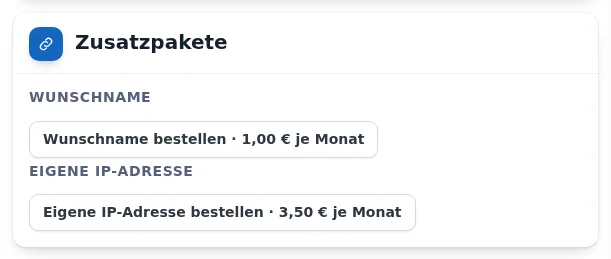
In „Serverstufe“ (Server tier) you see your tier and switch to the next higher one with one click, the button shows the new monthly price. In „Zusatzpakete“ (Add-ons) you order a custom name for the address or a dedicated IP address. Both are included in Flex XL.
„Spieler“ (Players) card
The card shows who is currently connected. Depending on the game, you ban, unban or kick players here and appoint administrators. Anyone who is banned loses admin rights and access.
Files, SFTP and log
- „Dateien“ (Files) opens the server's files in the browser with „Dateimanager öffnen“ (Open file manager), described under File manager for game servers.
- „SFTP“ sets up access for FileZilla, WinSCP and similar programs from Flex M, described under Setting up SFTP access.
- „Protokoll“ (Log) shows the server's last lines with „Protokoll holen“ (Fetch log). Passwords are blacked out.
Frequently asked questions
- Where do I save my settings?
- Not separately: every change is saved automatically. If the server is running, it takes effect after a restart.
- Why don't I see some cards?
- Some cards exist only for individual games, for example „Spielwelt-Einstellungen“ (World settings) and „Java-Mods“ for Project Zomboid, or only from a certain tier, for example „SFTP“ from Flex M. Additional users only see what they have rights for.
- Does the server restart by itself after a change?
- No. You trigger the restart with „Jetzt neu starten“ (Restart now). Scheduled restarts are set in the „Neustarts“ (Restarts) group.
See also: Game server restarts File manager for game servers How do my players connect?