
Home · Help · Setting up Project Zomboid mods from the Steam Workshop
Setting up Project Zomboid mods from the Steam Workshop
The server downloads mods from the Steam Workshop itself. You only enter the Workshop IDs and tick the mods you want. Mods are available from Flex M.
Workshop mods from Flex M
1. Switch on mods and enter Workshop IDs
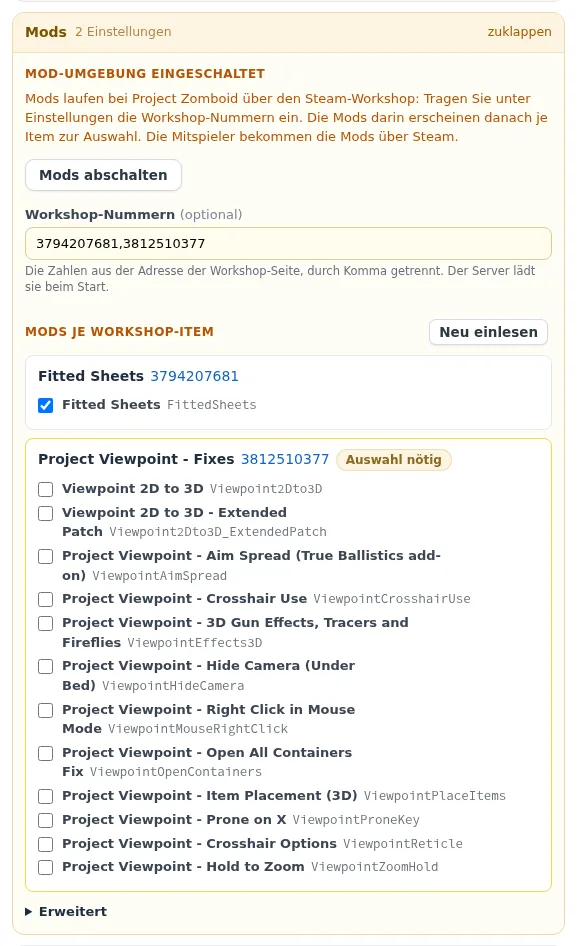
Open the „Mods“ group in the „Einstellungen“ (Settings) card and select „Mods einschalten“ (Switch on mods). Under „Workshop-Nummern“ (Workshop IDs), enter the numbers from the addresses of the Workshop pages, the number after ?id=, separated by commas. You do not need to look up mod IDs.
2. Select mods
After saving, the server downloads the new items from Steam and reads the mods they contain. Meanwhile it shows „wird eingelesen …“ (reading), from a few seconds to a few minutes depending on size. Then a list of mods with name and ID appears for each item. A tick switches a mod on and is saved immediately.
- If an item contains exactly one matching mod, it is switched on automatically.
- If it contains several, none is ticked at first and the item shows „Auswahl nötig“ (selection required).
- Mods that do not match the game version of the server are shown in grey, for example with „(Build 41)“ on a Build 42 server.
- If a Workshop ID is removed, its mods drop out of the selection. „Neu einlesen“ (Read again) reads all items again.
Load order and dependencies
The load order is determined automatically: mods that need others load after the mods they build on. If a required mod is missing, the item shows a notice. Nothing is added automatically.
- „… braucht … Diese Mod steckt in keinem eingetragenen Item.“ (… needs … This mod is not in any entered item.) Add the Workshop ID of the missing mod.
- „… braucht … (nicht angehakt).“ (… needs … (not ticked).) Tick the required mod.
- „Bei Steam nicht abrufbar. Mit dieser Nummer startet der Server nicht.“ (Not available on Steam. The server will not start with this ID.) The ID is wrong, does not belong to Project Zomboid or is blocked on Steam. Correct or remove it.
Special cases
Under „Erweitert“ (Advanced) there is the field „Mod-Kennungen“ (Mod IDs). It is only meant for IDs that do not belong to any entered Workshop ID. If you edit the settings file Server/<World>.ini with the file manager or via SFTP, you can also set Mods= and WorkshopItems= there. The customer portal takes these entries over as the selection. Existing servers keep their previous selection and order.
Mods for players
The game downloads the mods of the server when a player joins. If a mod is present in a different version, the server rejects the connection and names the mod.
After every change: restart
The server reads the mod list at startup. Workshop IDs and the selection are in the „Einstellungen“ (Settings) card in the „Mods“ group and are saved automatically. If the server is running, they take effect after a restart, which you trigger with „Jetzt neu starten“ (Restart now). The server does not restart by itself. Expect some waiting time after the restart, because the server first downloads the new mods. If the server should restart by itself when Workshop mods are updated, switch this on in the „Neustarts“ (Restarts) group, described in Setting up game server restarts.
Map mods
Map mods that bring their own map cannot be used on our servers. You can choose from the five starting areas of the game: Muldraugh, West Point, Riverside, Rosewood and March Ridge.
Restore
The world is backed up daily and can be reset to an earlier state. Before major changes to your mods, this is the safe approach.
See also: View Project Zomboid server Connecting players Project Zomboid: sandbox settings Build 42 or Build 41 Custom Java startup parameters Project Zomboid: Java mods with ZombieBuddy