
Home · Help · Valheim server settings
Valheim server settings: world, admins and commands
You set up everything that defines your Valheim server in the customer portal. How the cards work in general is described under Managing a game server in the customer portal. This article covers what only Valheim has.
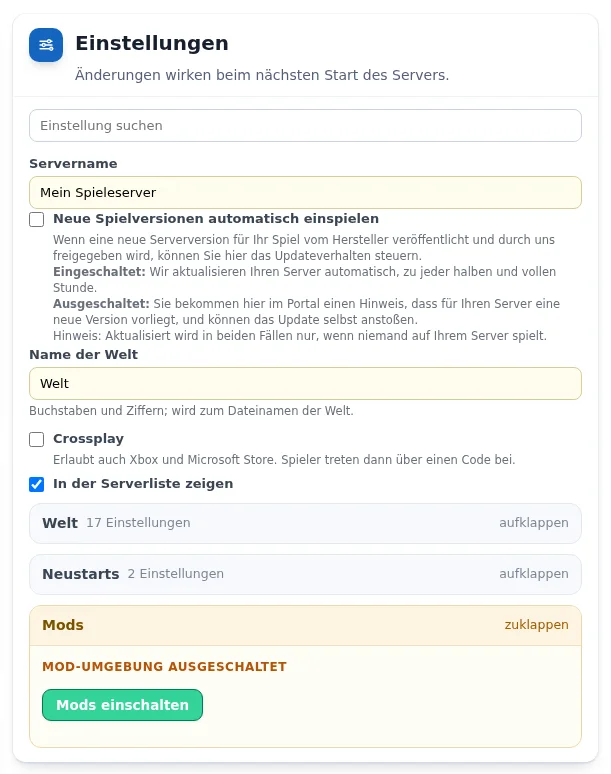
Basic settings
- „Name der Welt“ (World name): the name of the first world, only before the first start. After that you create, switch and rename worlds in the „Welten“ (Worlds) card. After renaming, Valheim still shows the old name because it is also stored in the world file.
- „Crossplay“: also allows players from Xbox and the Microsoft Store. They then join with a join code, described under Valheim with crossplay.
- „In der Serverliste zeigen“ (Show in server list): the server appears in the public list in the game.
„Welt“ (World) group: difficulty and modifiers
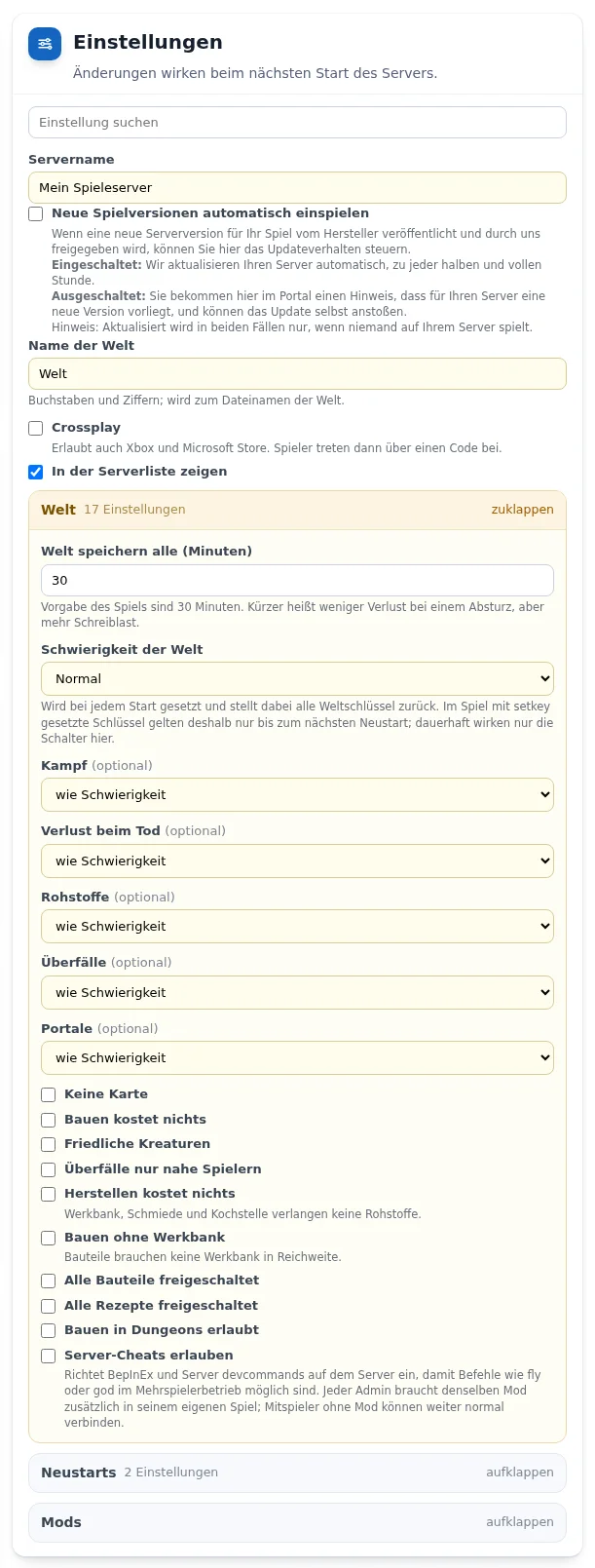
- „Welt speichern alle (Minuten)“ (Save world every minutes): the game's default is 30 minutes. Shorter means less loss after a crash.
- „Schwierigkeit der Welt“ (World difficulty): Normal, Casual, Easy, Hard, Hardcore, Immersive or Hammer mode.
- Adjustable individually, otherwise „wie Schwierigkeit“ (as difficulty): combat, death penalty, resources, raids and portals.
- Switches: no map, building costs nothing, passive creatures, raids only near players, crafting costs nothing, building without workbench, all building pieces unlocked, all recipes unlocked, building in dungeons allowed.
- „Server-Cheats erlauben“ (Allow server cheats): sets up BepInEx and Server devcommands so that commands such as
flyorgodalso work in multiplayer. Every admin also needs the same mod in their own game. Players without the mod still connect normally.
The difficulty is set at every start and resets all world keys in the process. What you change in the game with setkey therefore only lasts until the next restart. Only the switches in the customer portal are permanent.
Admins, banned players and access list
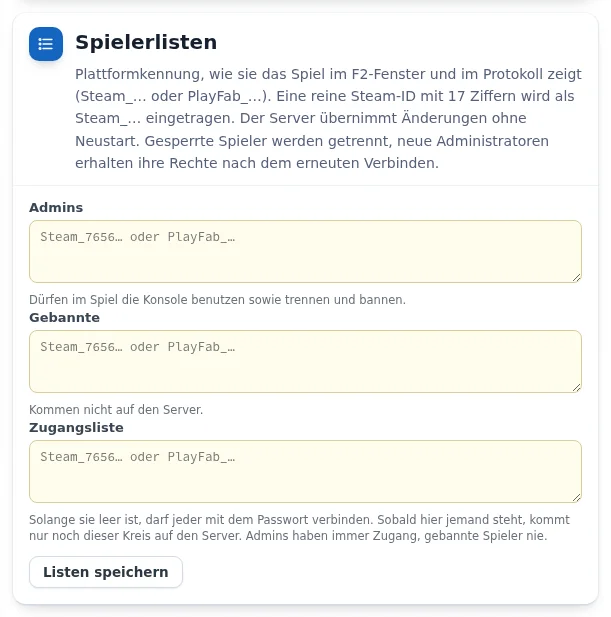
In the „Spielerlisten“ (Player lists) card you enter players with their platform ID as the game shows it in the F2 window and in the log: Steam_… or PlayFab_…. A plain 17-digit Steam ID is entered as Steam_…. With „Listen speichern“ (Save lists) the server applies the change without a restart. Banned players are disconnected, new admins get their rights after reconnecting.
- Admins may use the console in the game and kick and ban.
- Banned players cannot join the server.
- Access list: as long as it is empty, anyone with the password may connect. Once someone is on it, only this group gets onto the server. Admins always have access, banned players never.
Console and admin commands
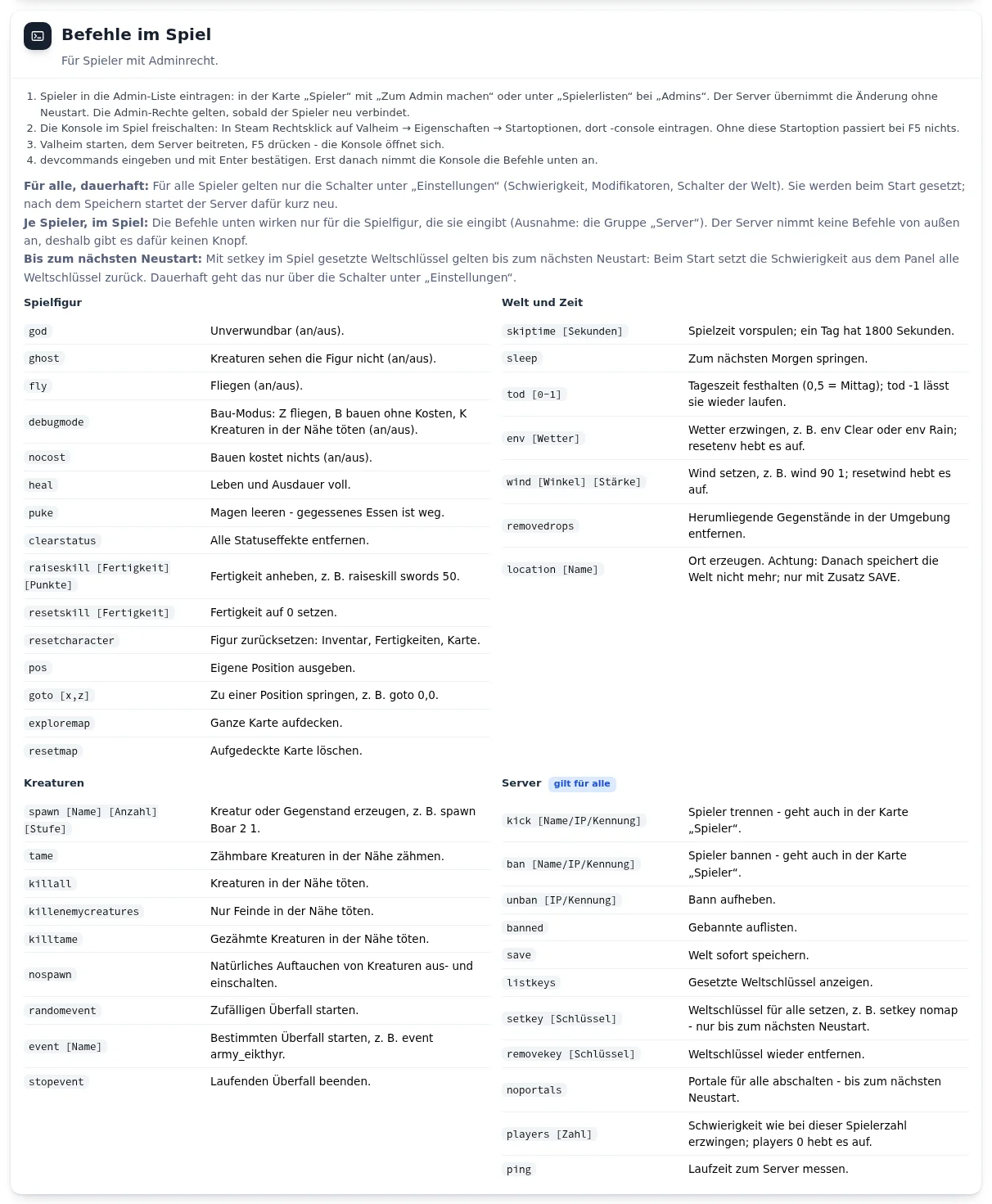
- Add yourself as admin, under „Spielerlisten“ at „Admins“ or in the „Spieler“ (Players) card with „Zum Admin machen“ (Make admin).
- Unlock the console: in Steam, right-click Valheim, Properties, Launch options, and enter
-console. Without this launch option nothing happens when you press F5. - Start Valheim, join the server and press F5. The console opens.
- Enter
devcommandsand confirm with Enter. Only then does the console accept commands.
The commands only affect the character that enters them, except for the server commands. Some examples: god (invulnerable), fly (fly), debugmode (build mode), skiptime 1800 (skip one day), sleep (to the next morning), env Clear (weather), spawn Boar 2 1 (spawn creatures), exploremap (reveal map). The full list with explanations is shown in the „Befehle im Spiel“ (In-game commands) card in the customer portal.
Mods with BepInEx
From Flex M. Switch on the mod environment in the „Mods“ group with „Mods einschalten“ (Switch on mods). BepInEx sets itself up in the process. You upload mods in the „Mods und eigene Welt hochladen“ card with the type „Mod“, as .dll or .zip. They take effect at the next start. Mods are third-party program code, and there is no guarantee for operation with mods.
Uploading your own world
In the „Mods und eigene Welt hochladen“ card with the type „Welt“ (World): an archive (.zip or .tar.gz) with Welt.fwl and Welt.db or _main.*.fwl2 and _main.*.db2, for example a downloaded backup. The server stops, backs up the old state, replaces the world and starts again.
Frequently asked questions
- Why don't
flyorgodwork on my server? - In multiplayer you need „Server-Cheats erlauben“ in the „Welt“ group and the same mod in the admin's game. You must also be entered as admin and have entered
devcommands. - Why is my world changed with setkey back to normal after the restart?
- At start the difficulty from the customer portal resets all world keys. You change the world permanently with the switches in the „Welt“ group.
- Where do I find a player's platform ID?
- In the game with F2 and in the server log, as
Steam_…orPlayFab_….
See also: Valheim with crossplay Managing a game server in the customer portal Game server restarts